Business Challenge
#56 gave access a lifecycle but left the trigger human: somebody requests, somebody approves. Lifecycle workflows remove the human from the predictable parts. The three phases are the familiar ones — “Joiner: When an individual enters the scope of needing access… Mover: When an individual moves between boundaries within an organization… Leaver: When an individual leaves the scope of needing access” — and the structure is pleasingly small.
A workflow is “tasks and execution conditions”, and an execution condition is just two questions: “the scope of who's affected and the trigger of when a workflow will be performed.” The documentation’s own example is the whole feature in three lines: send a manager an email “seven days before the value in the employeeHireDate attribute of new employees” — task, scope, trigger.
Which is also the dependency nobody mentions in the pitch. The trigger is an attribute on a user object. If employeeHireDate is empty, wrong, or arrives from HR after the date it describes, the automation does not misfire — it does nothing, silently, for that person.
“For reliable workflow execution, the user account must be configured with all relevant details (e.g., trigger and scoping attributes) in advance of the scheduled workflow execution.”
There is a grace period, and it is short and specific: if setup is late, “Lifecycle Workflows will still attempt to process the user—provided the necessary setup is completed within three days of the original processing time.” Miss that window and the run for that user is simply gone.
And the catch-up is not universal: it “doesn't apply when you select Time based attribute V2 (Preview)” — so the newer trigger is less forgiving than the one it replaces.
So this is not really a workflow-authoring exercise. It is a data-quality project with a workflow engine attached, and the order of work is: fix the HR feed, then automate.
Architecture
Four triggers, a scheduler you must switch on separately, and a limits table that shapes the design more than the templates do.
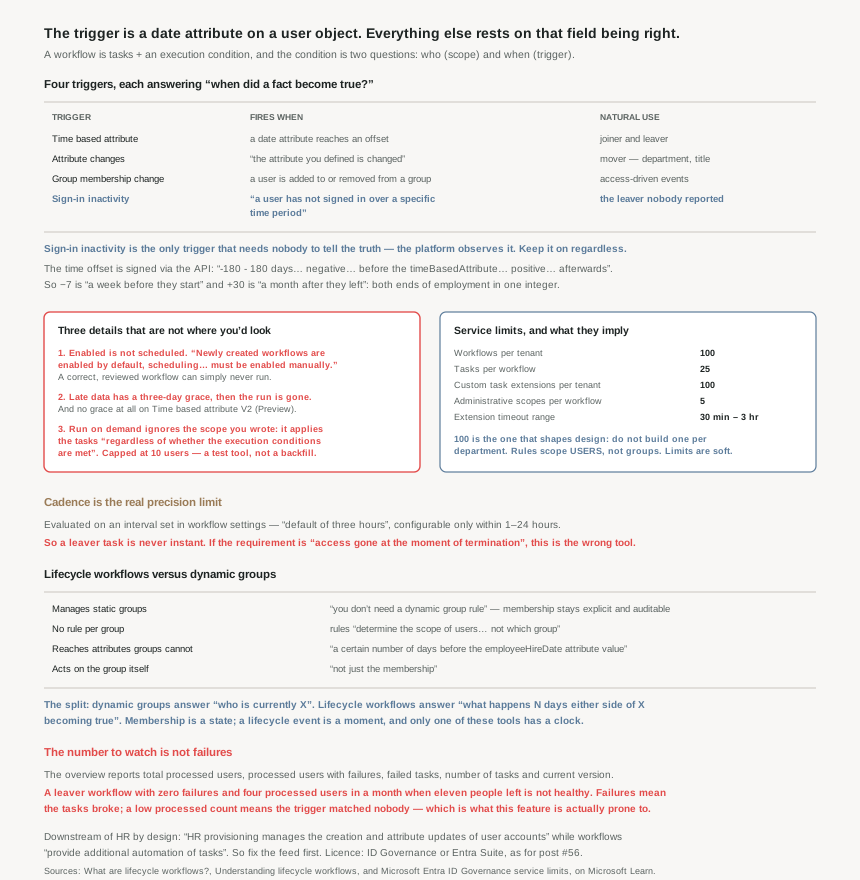
Four triggers, and only one of them is about time
“The supported scheduled triggers are: Attribute changes · Group membership change · Time based · Sign-in inactivity.” The mental model that helps is that each answers a different question about when a fact became true:
| Trigger | Fires when | Natural use |
|---|---|---|
| Time based attribute | A date attribute reaches a configured offset | Joiner and leaver, relative to hire or leave date |
| Attribute changes | “the attribute you defined is changed for a user” | Mover — department, job title, cost centre |
| Group membership change | “if a user is added or removed from a specific group” | Access-driven rather than HR-driven events |
| Sign-in inactivity | “a user has not signed in over a specific time period” | Dormant accounts — the leaver nobody told you about |
That last one deserves attention because it is the only trigger that does not depend on anyone telling the truth. Every other trigger needs HR, or an administrator, to record something. Sign-in inactivity is observed by the platform itself, which makes it the backstop for the case this series has met repeatedly: the person who left and whose account nobody disabled. It is the lifecycle equivalent of #46’s access review — a control that works when the process has already failed.
The offset window is six months, and the sign carries the meaning
The time-based trigger is an offset from a date attribute, and the range is generous: “offsetInDays range of triggerAndScopeBasedConditions executionConditions: 180 days.” Through the API it is signed, which is the part worth knowing when scripting: “the offsetInDays range will be between -180 - 180 days. The negative value signals happening before the timeBasedAttribute, while the positive value signals happening afterwards.”
So one attribute and a signed integer express both halves of a lifecycle: −7 for “a week before they start”, +30 for “a month after they left”. Six months in either direction covers notice periods, probation and most retention obligations without a second mechanism.
Scheduling is a separate switch, and it is off
This is the first of the three operational details, and it is the one most likely to produce a workflow that looks live and is not: “While newly created workflows are enabled by default, scheduling is an option that must be enabled manually.”
Enabled and scheduled are different states. A workflow can be enabled, correct, templated, pass every review — and never run, because nothing is evaluating it. The documentation points at the column to check (Scheduled), which is a tell that people get this wrong.
Once it is on, the cadence is a tenant setting: evaluated “based on the interval that is set within your workflow settings (default of three hours)”, configurable across “1-24 hours”. That range is the real precision limit of the whole feature. A leaver task is not instant; it happens within an hour at best, three by default. If your requirement is “access gone at the moment of termination”, this is the wrong tool and #50’s immediate-disable path is the right one.
On demand ignores everything you configured
The second operational detail, and the one with real blast radius: “A workflow that is run on demand for a user does not take into account whether or not a user meets the workflow's execution conditions. It will apply the tasks regardless of whether the execution conditions are met by the user or not.”
Read that against a leaver workflow whose tasks are “the disabling and removal of user accounts”. Running it on demand against the wrong person does not get stopped by the scope you carefully defined — the scope is not consulted. The guardrail is a limit rather than a check: “Number of users per on-demand selection: 10.”
Which tells you what on-demand is for. Ten users, no condition evaluation: that is a testing affordance, not a bulk remediation tool. If you were planning to use it to catch up on a backlog of leavers, it is both the wrong size and the wrong semantics.
The limits shape the design
| Limit | Value | What it implies |
|---|---|---|
| Workflows per tenant | 100 | Not one per department. Scope broadly, vary by attribute. |
| Tasks per workflow | 25 | Generous — an onboarding sequence fits comfortably. |
| Custom task extensions per tenant | 100 | The Logic Apps escape hatch is not rationed. |
| Administrative scopes per workflow | 5 | Delegation is per workflow, and narrow. |
| Custom extension timeout | 30 minutes to 3 hours | A Logic App can take hours. Design for async. |
The hundred-workflow ceiling is the one that changes architecture. It pushes you towards the design the documentation already recommends for dynamic groups — “Lifecycle workflow rules determine the scope of users to execute workflows against, not which group” — so a single joiner workflow scoped by department beats forty department-specific ones. And all of these are soft: “Limits can be increased… you must contact Microsoft Support.”
Why This Architecture Holds Up
Because it is not a replacement for HR provisioning, and the boundary is precise
The division of labour is stated cleanly and is worth quoting at anyone who thinks this tool creates users: “HR provisioning manages the creation and attribute updates of user accounts, [while] lifecycle workflows provide additional automation of tasks.”
So the account and its employeeHireDate come from the HR system; the email to the manager, the temporary access pass, the group memberships and the access packages come from here. Lifecycle workflows sit downstream of the data they depend on, which is why the data-quality problem cannot be solved inside them. If HR enters a hire date the day someone starts, no offset can send a manager an email a week earlier.
Because it overlaps dynamic groups, and the documentation says when to prefer which
This is a genuinely useful comparison that rarely gets made explicitly. Four differences, each with a decision attached:
- “Lifecycle workflows manage static groups, where you don't need a dynamic group rule.” So you can govern a group whose membership must be explicit and auditable.
- “There's no need to have one rule per group” — the rule scopes users, not groups, so one workflow can touch many groups.
- It reaches attributes dynamic groups cannot: “a certain number of days before the
employeeHireDateattribute value.” No dynamic rule can express “seven days before”. - “Lifecycle workflows can perform actions on the group, not just the membership.”
The clean split: dynamic groups for “who is currently X”, lifecycle workflows for “what should happen N days either side of X becoming true”. Membership is a state; a lifecycle event is a moment, and only one of these tools has a clock.
Because versioning is how you avoid lying to your own audit trail
A quiet feature with a governance purpose: “Workflow versions are separate workflows built using the same information of an original workflow, but with either the tasks or scope updated, so that they're reported differently within logs.”
That last clause is the point. If you edit a leaver workflow’s tasks in place, every historical run is now attributed to a definition that did not exist when it ran — and the audit trail quietly misrepresents what happened to people who left last quarter. Versioning keeps the old definition addressable. For a feature whose outputs are “we disabled this account on this date for this reason”, that matters more than it sounds.
The history is also built for the question you will actually ask, from three angles: “through the lens of its users, runs, and tasks”. One of those three answers “why did nothing happen to this person”, which is the hardest question to answer about any automation.
Because the failure mode is silence, and the dashboard names it
Every post in this phase has found a control that fails quietly. Here the platform at least counts the silence for you: the workflow overview reports “Total processed users… Processed users with failures… Failed tasks… Number of tasks… Current version”, plus the next target run.
The number to watch is not failures — it is total processed users against what you expected. A leaver workflow with zero failures and four processed users in a month when eleven people left is not healthy; it is scoped wrong, or seven hire-date fields were blank. Failures tell you the tasks broke. The processed count tells you the trigger never matched, which is the failure this feature is actually prone to.
Because the licence puts it in the same conversation as #56
Same gate as entitlement management: “Using this feature requires Microsoft Entra ID Governance or Microsoft Entra Suite licenses.” Above P2, and sold with the feature this post completes.
Which is the right way to buy them, because they compose. Lifecycle workflows can “automate assigning, and removing, access packages for users” — so #56’s bundles become the thing a joiner workflow hands out and a leaver workflow takes back. One licence, and the request-driven and date-driven halves of governance meet. The delegated role, for the record, is “Lifecycle Workflows Administrator”.
Worth keeping the matching limits in view while designing that pairing: 20,000 access packages and 300,000 assignments per tenant, but only 15,000 assignments from any single automatic assignment policy — which is the one most likely to bind, because an automatic policy is exactly what you reach for when a workflow drives the assignment.
Key Architecture Decisions
| Situation | Decision | Why |
|---|---|---|
| Before building any workflow | Audit employeeHireDate and employeeLeaveDateTime coverage |
A blank trigger attribute means silent no-op for that user. |
| HR enters dates late | Know the catch-up window is three days | Later than that and the run for that user is lost. |
| Using the V2 time-based trigger | Expect no catch-up at all | The three-day grace does not apply to the preview trigger. |
| Workflow built and reviewed | Check the Scheduled column, not just Enabled | Scheduling is a separate switch and defaults off. |
| Requirement is instant revocation | Wrong tool — use direct disable | Evaluation runs hourly at best, three-hourly by default. |
| Tightening the cadence | 1 hour is the floor | The interval is configurable only within 1–24 hours. |
| Tempted to use Run on demand for a backlog | Don't | It ignores execution conditions entirely and caps at 10 users. |
| Testing a destructive leaver workflow | Treat on-demand as live fire | Scope is not consulted; the tasks just run. |
| Designing for many departments | One workflow scoped by attribute | 100 workflows per tenant; rules scope users, not groups. |
| Catching leavers nobody reported | Sign-in inactivity trigger | The only trigger that needs nobody to tell the truth. |
| Mover scenarios | Attribute-change trigger on department or title | Fires on the change itself rather than a date. |
| Something a task cannot do | Custom task extension to Logic Apps | 100 per tenant, with a 30-minute to 3-hour timeout. |
| Changing a live workflow's tasks or scope | Create a version | Editing in place misattributes historical runs in logs. |
| Health-checking a workflow | Watch total processed users, not failures | A trigger that never matches produces zero of both. |
| Pairing with access packages | Automate assignment and removal from the workflow | Same licence; mind the 15,000-per-automatic-policy cap. |
| Delegating workflow administration | Lifecycle Workflows Administrator, max 5 scopes per workflow | Purpose-built role; administrative scopes are limited. |
Closing Thought
The honest summary of lifecycle workflows is that they are a small, well-shaped engine bolted to a field in your HR system. The engine is good: four triggers that cover the real events, a signed six-month offset that expresses both ends of an employment relationship with one number, twenty-five tasks per workflow, and a Logic Apps escape hatch for everything else. None of that is where projects fail.
They fail because employeeHireDate is populated for seventy per cent of starters, or because the HR feed lands two days late and nobody knew the catch-up window was three days, or because somebody built the workflow, enabled it, and never noticed that scheduling is a different switch.
So the useful sequencing is the opposite of the demo order. Measure attribute coverage first and fix the feed. Then build one broadly-scoped workflow per phase rather than one per department, because the ceiling is a hundred and the rules scope users anyway. Then watch processed users rather than failures, because the characteristic failure of this feature is a trigger that quietly matches nobody. And keep the sign-in inactivity trigger switched on regardless of how good the rest of it gets, since it is the only one that does not require a human to have done their part.
The one thing I would treat with genuine care is Run on demand. A feature whose leaver tasks disable and delete accounts, and whose on-demand path explicitly does not evaluate the scope you wrote, is a loaded tool with a ten-user magazine. It is there for testing. Using it for anything else means the only thing standing between a mistake and eleven disabled accounts is the person clicking.
#58 turns to the evidence for all of this: Entra’s logs — sign-ins, audit and provisioning — what each one records, how long it is kept, and which questions none of them can answer.
Official Azure Reference
- What are lifecycle workflows? — the joiner-mover-leaver phases, tasks and execution conditions, the comparison with dynamic group memberships, and the licence requirement
- Understanding lifecycle workflows — the four triggers, the separate scheduling switch and three-hour default, the three-day catch-up window, on-demand semantics, versioning and history
- Microsoft Entra ID Governance service limits — every figure quoted above, for both lifecycle workflows and entitlement management
Comments